
Setup
Replace the Shopify variant picker without editing theme code
Smart Variant Table is built for merchants who want a better variant selection experience without opening theme files. You can install the app, enable the table, adjust key settings, and hide native Shopify controls from the app dashboard.
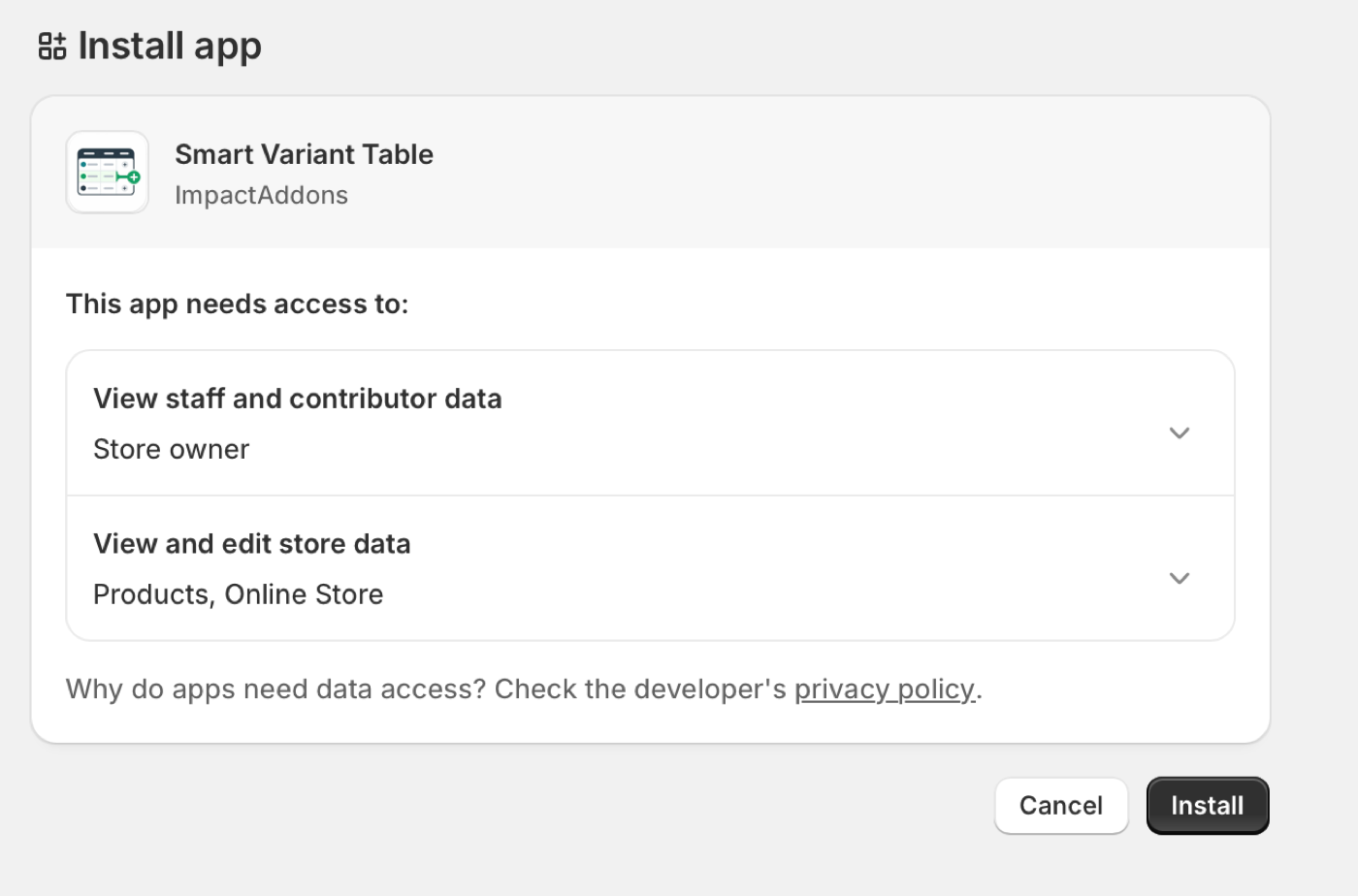
Step 1: Install from the Shopify App Store
Start from the Smart Variant Table listing on the Shopify App Store. During installation, Shopify shows the permissions required by the app, including access needed to work with product and Online Store data. Review the screen, click install, and Shopify will add the app to your store admin.
Step 2: Open the app dashboard
After installation, open Smart Variant Table inside Shopify admin. The settings screen is where you enable the app, set the table title, change the add-to-cart button text, and decide how the table should appear on the storefront.
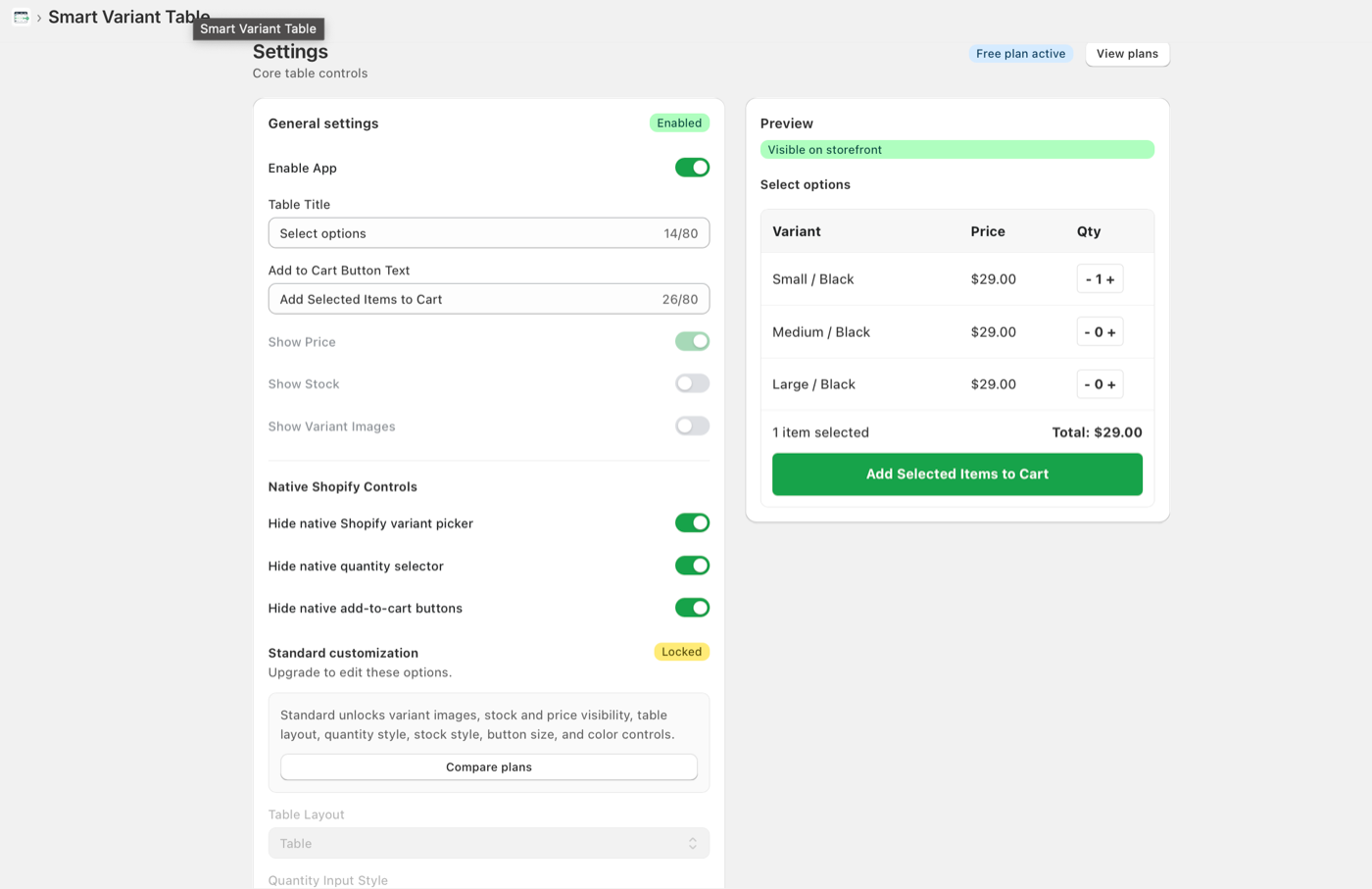
Step 3: Hide native Shopify controls
Many stores do not want both the default variant picker and the new variant table visible at the same time. Smart Variant Table includes options to hide the native Shopify variant picker, quantity selector, and add-to-cart buttons so the product page has one clean buying flow.
Step 4: Choose the right display options
For simple stores, enabling the table and using theme-default styling may be enough. For stores that need more control, the app can support variant images, stock visibility, price visibility, layout settings, quantity styling, button size, and color controls.
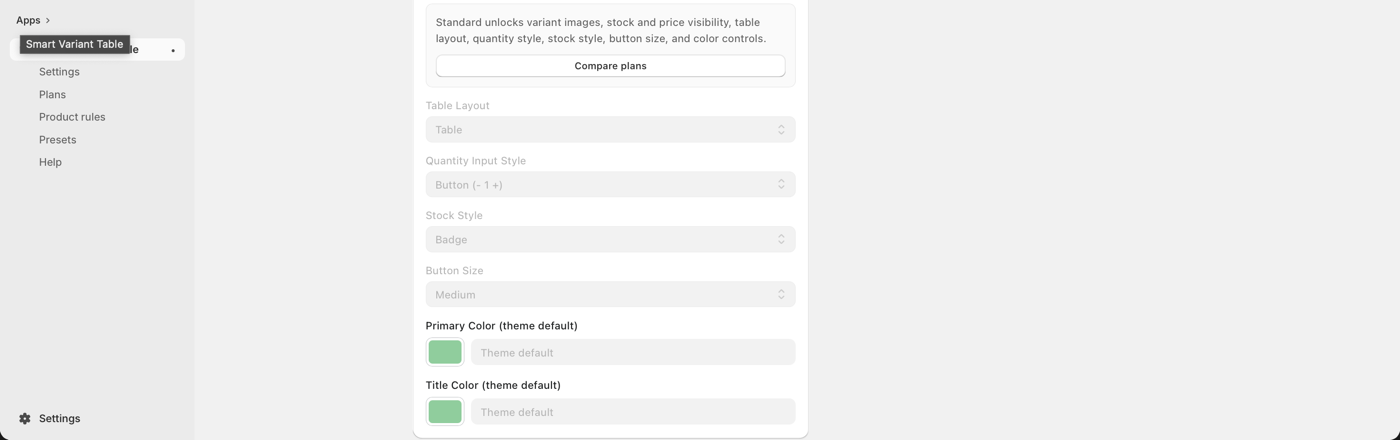
For a complete walkthrough of these foundation settings, watch the Smart Variant Table Free plan setup guide.
Setup checklist
- Install Smart Variant Table from the Shopify App Store.
- Enable the app in the settings screen.
- Confirm the table title and add-to-cart button text.
- Hide native variant controls if your theme shows duplicate controls.
- Preview the storefront table on products with multiple variants.
- Test quantity selection and add selected items to cart.
Need a cleaner variant picker replacement?
Use Smart Variant Table to create a modern variant table without editing Shopify theme code.